








If you’re a developer, tech enthusiast, or someone who wants to sideload apps, use advanced debugging tools, or unlock features that go beyond the standard Windows experience, you’ve probably come across the term “Developer Mode.” This special setting in Windows 11 opens the door to a range of capabilities that are hidden from everyday users — but enabling it isn’t always obvious if you’ve never done it before.
In this guide, we’ll walk you through exactly how to enable Developer Mode in Windows 11, explain what it actually does, cover every method available (Settings app, Command Prompt, PowerShell, and Group Policy), and answer the most common questions people have about it. Whether you’re setting up a coding environment, testing an app you’re building, or just curious about what Developer Mode unlocks, this tutorial has you covered.
What Is Developer Mode in Windows 11?
Developer Mode is a system-wide setting that relaxes some of the security restrictions Windows normally enforces, making it easier to build, test, and debug applications directly on your PC. When you turn it on, Windows allows you to:
- Install apps from sources outside the Microsoft Store (sideloading), including unsigned or self-signed apps
- Use advanced debugging tools like Device Portal for Windows apps
- Access the Windows Subsystem for Linux (WSL) and other developer-focused features more easily
- Enable symlink creation without needing administrator privileges every time
- Use PowerShell and terminal tools with fewer execution restrictions
- Test Universal Windows Platform (UWP) apps and Progressive Web Apps (PWAs) before publishing them
Essentially, Developer Mode shifts your PC from a “locked down consumer” configuration to a more open, developer-friendly one. It’s important to note that this is different from Windows Insider builds or the Windows Subsystem for Android — Developer Mode is a standalone toggle available on any standard Windows 11 installation.
Why Would You Need Developer Mode?
Before diving into the tutorial, it helps to understand who actually benefits from turning this on:
- App developers building and testing UWP, WinUI, or PWA applications
- Students and hobbyists learning to code and wanting to experiment with system-level tools
- IT professionals who need to sideload internal line-of-business apps not distributed through the Microsoft Store
- Power users who want to create symbolic links, use advanced terminal features, or tinker with system internals
If you’re just a casual user browsing the web and using everyday apps, you likely won’t need Developer Mode. But if any of the use cases above sound like you, enabling it will save you time and unlock functionality that’s otherwise restricted.
Before You Begin: Things to Know
- You’ll need administrator access on your Windows 11 device to enable Developer Mode.
- Turning it on does not require a restart in most cases, though some features may prompt you to sign out and back in.
- Developer Mode can be turned off at any time by following the same steps in reverse.
- Enabling Developer Mode slightly reduces some security restrictions, so only enable it on devices you trust and control — avoid doing this on shared, public, or work-managed computers unless authorized.
Now let’s get into the actual methods.
Method 1: Enable Developer Mode via the Settings App (Recommended)
This is the easiest and most reliable way to enable Developer Mode, and it’s the method Microsoft officially recommends for most users.
Step-by-Step Tutorial
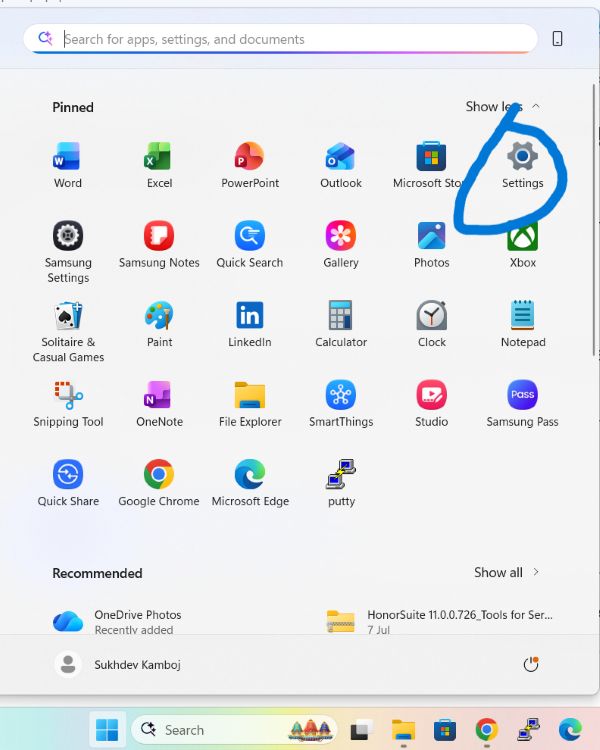
Open the Settings app. Press Windows key + I on your keyboard, or click the Start button and select the gear-shaped Settings icon.
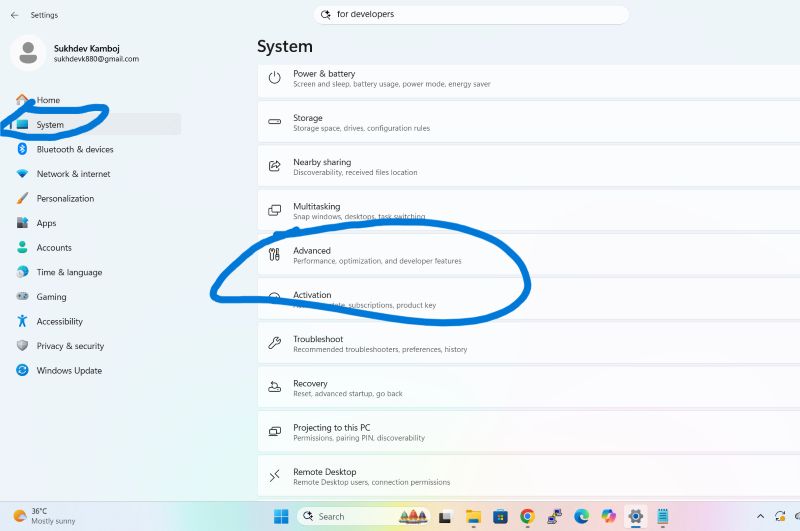
Navigate to System. In the left-hand sidebar, click on Advanced.
Toggle on “Developer Mode.” You’ll see a switch labeled Developer Mode. Click it to turn it on.
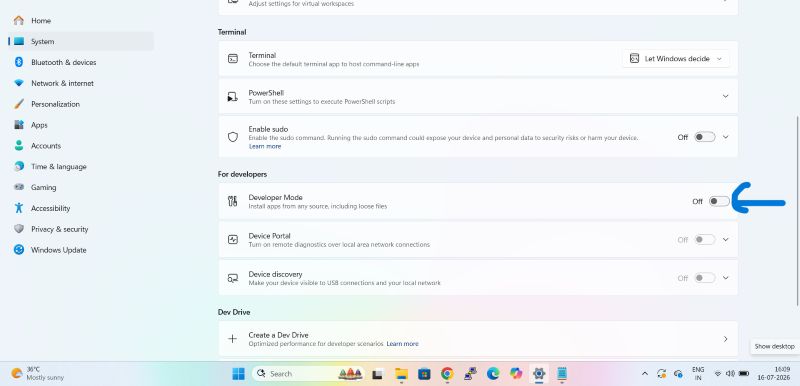
Confirm the warning prompt. Windows will show a dialog box warning you about the risks of installing apps from unverified sources. Click Yes to confirm.
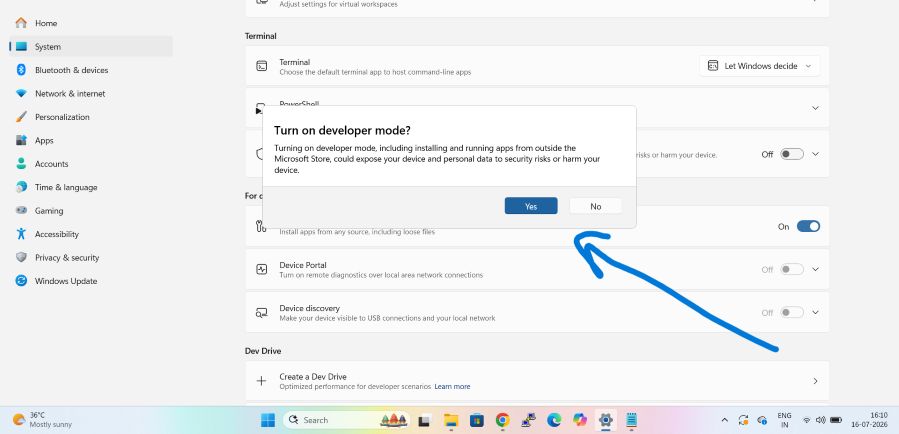
Wait for the installation. Windows will download and install a small package of developer components. This usually takes less than a minute, depending on your internet connection.
Restart if prompted. In most cases, no restart is needed, but if Windows asks you to restart, save your work and do so to finalize the changes.
That’s it — Developer Mode is now active on your system. You can verify this by returning to the page; the toggle should show as “On.”
Additional Options in the “For Developers” Panel
While you’re in this menu, it’s worth noting a few related settings you can also configure:
- PowerShell: Choose whether File Explorer opens PowerShell or Command Prompt when you use “Open in Terminal.”
- Device Portal: Enable remote diagnostics for your device over your local network.
- DSC (Desired State Configuration): Useful for advanced configuration management scenarios.
- Terminal settings: Configure default terminal application preferences.
Method 2: Enable Developer Mode Using Windows Settings URI (Quick Shortcut)
If you want a faster way to jump directly to the Developer Mode settings page without manually navigating through menus, you can use a direct settings link.
- Press
Windows key + Rto open the Run dialog. - Type the following and press Enter:
ms-settings:developers- This opens the “For developers” page directly. From here, follow steps 5–8 from Method 1 above.
This shortcut is especially handy if you frequently toggle Developer Mode on and off, or if you’re documenting steps for a team and want a repeatable command.
Method 3: Enable Developer Mode via Command Prompt
For users who prefer working in the command line or need to enable Developer Mode as part of a scripted setup process, you can do this using Command Prompt with administrator privileges.
- Open Command Prompt as Administrator. Right-click the Start button, select Terminal (Admin) or Command Prompt (Admin), and confirm the User Account Control (UAC) prompt.
- Run the following command to enable Developer Mode via the registry:
reg add "HKLM\SOFTWARE\Microsoft\Windows\CurrentVersion\AppModelUnlock" /t REG_DWORD /f /v "AllowDevelopmentWithoutDevLicense" /d "1"- Press Enter. You should see a confirmation message that the operation completed successfully.
- Restart Windows Explorer or sign out and back in to ensure the change takes full effect (optional but recommended).
This method directly modifies the registry key that controls Developer Mode, which is the same key the Settings app toggle updates behind the scenes.
Method 4: Enable Developer Mode via PowerShell
PowerShell offers a similar registry-based approach, useful for IT admins deploying settings across multiple machines or for anyone who prefers scripting.
- Open PowerShell as Administrator. Right-click Start, choose Terminal (Admin), and ensure the profile is set to PowerShell.
- Run the following command:
powershell
New-ItemProperty -Path "HKLM:\SOFTWARE\Microsoft\Windows\CurrentVersion\AppModelUnlock" -Name AllowDevelopmentWithoutDevLicense -PropertyType DWord -Value 1 -Force- Verify the change by running:
powershell
Get-ItemProperty -Path "HKLM:\SOFTWARE\Microsoft\Windows\CurrentVersion\AppModelUnlock"If Developer Mode is active, AllowDevelopmentWithoutDevLicense should return a value of 1.
This PowerShell method is ideal for automation scripts, especially in enterprise environments where developer machines need to be configured consistently.
Method 5: Enable Developer Mode via Group Policy (Windows 11 Pro, Enterprise, Education)
If you’re using Windows 11 Pro, Enterprise, or Education edition, you can also enable Developer Mode through the Local Group Policy Editor. This method is particularly useful for IT administrators managing multiple devices in an organization.
- Press
Windows key + R, typegpedit.msc, and press Enter to open the Local Group Policy Editor. - Navigate to:
Computer Configuration > Administrative Templates > Windows Components > App Package Deployment- Look for a policy named “Allow development of Windows Store apps and installing them from an integrated development environment (IDE).”
- Double-click the policy and set it to Enabled.
- Click Apply, then OK.
- Restart your computer for the policy to take full effect.
Note: Group Policy Editor is not available on Windows 11 Home edition. If you’re using Home edition, stick to Methods 1–4 above.
How to Verify Developer Mode Is Enabled
After using any of the methods above, it’s a good idea to confirm the change took effect:
- Go back to Settings > Privacy & security > For developers.
- Check that the Developer Mode toggle shows On.
- Alternatively, open PowerShell and run the
Get-ItemPropertycommand from Method 4 to confirm the registry value is set to1.
How to Turn Off Developer Mode
If you ever want to disable Developer Mode — for example, before selling your PC, resetting security settings, or simply because you no longer need it — the process is just as simple:
- Go to Settings > Privacy & security > For developers.
- Toggle Developer Mode to Off.
- Confirm any prompts that appear.
Alternatively, run this command in an elevated Command Prompt to reverse the registry change:
reg add "HKLM\SOFTWARE\Microsoft\Windows\CurrentVersion\AppModelUnlock" /t REG_DWORD /f /v "AllowDevelopmentWithoutDevLicense" /d "0"Troubleshooting Common Issues
Developer Mode toggle is greyed out. This usually happens on managed devices (work or school accounts) where an administrator has restricted this setting via Group Policy or Mobile Device Management (MDM). Contact your IT department if this applies to you.
Nothing happens after enabling it. Try restarting your PC. While a restart isn’t always required, some features tied to Developer Mode (like sideloading permissions) may not activate until after a reboot.
Registry method doesn’t work. Make sure you’re running Command Prompt or PowerShell as Administrator — the registry key modification will silently fail without elevated permissions.
Apps still won’t sideload after enabling Developer Mode. Double check that the app package (APPX/MSIX) is properly signed or that you’ve trusted the certificate associated with it. Developer Mode allows sideloading but doesn’t bypass all signature validation requirements.
Frequently Asked Questions (FAQ)
1. Is enabling Developer Mode in Windows 11 safe?
Yes, for most users. Developer Mode is a legitimate, Microsoft-supported feature. However, it does relax some security restrictions — particularly around sideloading unsigned apps — so you should only install software from sources you trust while it’s enabled. It’s not inherently dangerous, but it does place more responsibility on you to vet what you install.
2. Does enabling Developer Mode void my warranty?
No. Developer Mode is a built-in, official Windows setting, not a hack or unauthorized modification. Enabling it has no effect on your hardware warranty.
3. Do I need Developer Mode to use Windows Subsystem for Linux (WSL)?
Not necessarily. WSL can typically be installed and used without Developer Mode enabled. However, some advanced development workflows and older WSL setup methods benefit from having Developer Mode active, so it’s worth enabling if you plan to do serious cross-platform development work.
4. Can I enable Developer Mode on Windows 11 Home edition?
Yes. Developer Mode itself is available on all editions of Windows 11, including Home. The only method that isn’t available on Home edition is Group Policy Editor (Method 5), since gpedit.msc is exclusive to Pro, Enterprise, and Education editions. Home users should use the Settings app, Command Prompt, or PowerShell methods instead.
Conclusion
Enabling Developer Mode in Windows 11 is a quick process that unlocks a range of features useful for developers, IT professionals, and power users alike — from sideloading apps to accessing advanced debugging tools. Whether you prefer the simplicity of the Settings app, the speed of a Run command shortcut, or the flexibility of Command Prompt, PowerShell, and Group Policy for automated or enterprise deployments, there’s a method here that fits your workflow.
Just remember: with the added flexibility of Developer Mode comes a bit more responsibility. Stick to trusted sources when sideloading apps, and disable the feature if you no longer need it. With this guide, you now have every method available to enable — and disable — Developer Mode on Windows 11, along with the knowledge to troubleshoot common issues along the way.