








Batch files remain one of the fastest and most reliable ways to automate repetitive tasks on Windows 11. Whether you want to launch multiple programs with a single click, automate file backups, clean up temporary folders, or schedule routine maintenance, a batch file (.bat) can save you hours of manual work. Despite the rise of PowerShell and other modern scripting tools, batch files are still widely used because they are simple, require no special software, and run natively on every version of Windows, including Windows 11.
In this guide, you’ll learn exactly what a batch file is, why it’s still useful in 2026, and multiple methods to create, edit, run, and troubleshoot batch files in Windows 11 — even if you’ve never written a line of code before.
What Is a Batch File?
A batch file is a plain text file saved with a .bat or .cmd extension that contains a series of commands executed sequentially by the Windows Command Prompt (cmd.exe). Instead of typing commands one at a time, you write them once, save the file, and double-click it whenever you need to run that sequence again.
Common uses for batch files include:
- Launching several applications or websites at once
- Automating file organization, backups, or cleanup
- Mapping network drives automatically
- Running diagnostic or system maintenance commands
- Setting environment variables for development work
- Scheduling recurring tasks with Windows Task Scheduler
Because batch files use the same command syntax as the Command Prompt, anything you can type into cmd.exe, you can put into a batch file.
Before You Start: What You’ll Need
You don’t need to install anything extra to create batch files in Windows 11. All you need is:
- A Windows 11 PC (built-in Notepad or any text editor works)
- Basic familiarity with Command Prompt commands (optional but helpful)
- Administrator access if your script needs to modify system settings
Now let’s go through the different methods you can use.
Method 1: Create a Batch File Using Notepad (Easiest Method)
This is the most beginner-friendly way to create a batch file in Windows 11.
Step 1: Open Notepad Press Windows + S, type “Notepad,” and press Enter. Alternatively, right-click on your desktop, select New, then Text Document.
Step 2: Write Your Commands Type the commands you want the batch file to execute. For example, a simple script that opens Notepad and Calculator:
@echo off
start notepad.exe
start calc.exe
echo Both apps have been launched!
pause
Here’s what each line does:
@echo offhides the command lines themselves from the output window, showing only the results.startlaunches a program.echodisplays a text message.pausekeeps the window open until you press a key, so you can read any output.
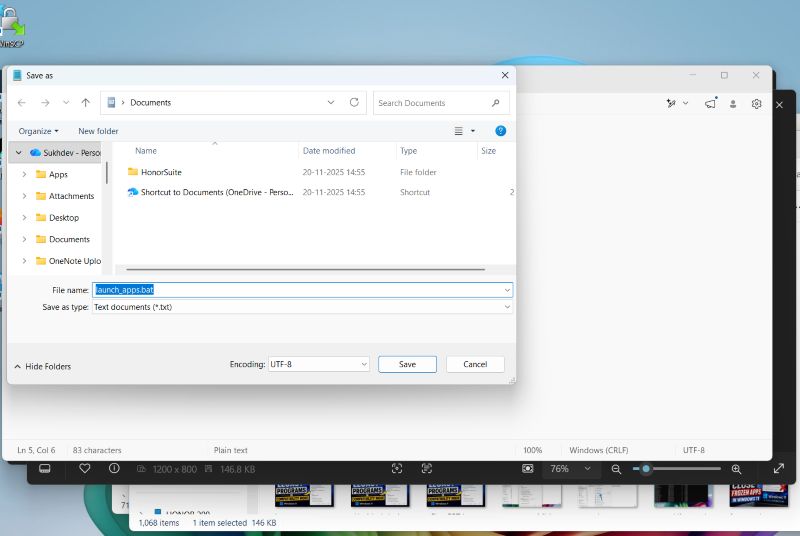
Step 3: Save the File with a .bat Extension Click File > Save As. In the “Save as type” dropdown, select All Files. Name your file something like launch_apps.bat, making sure it ends in .bat and not .txt. Choose a location you’ll remember, such as your Desktop, and click Save.
Step 4: Run the Batch File Double-click the .bat file you just created. A black Command Prompt window will briefly appear and execute your commands.
Method 2: Create a Batch File Directly from Command Prompt
If you’re already comfortable in the terminal, you can create and edit batch files without ever opening Notepad manually.
Step 1: Open Command Prompt Press Windows + S, type “cmd,” and press Enter.
Step 2: Navigate to Your Target Folder Use the cd command to move to the folder where you want to save the file:
cd C:\Users\YourName\DocumentsStep 3: Create and Edit the File Type the following command to open Notepad with a new batch file:
notepad myscript.batWindows will ask if you want to create a new file — click Yes. Write your commands, save, and close Notepad.
Step 4: Run It From the same Command Prompt window, type:
myscript.batand press Enter to execute it immediately.
Method 3: Create a Batch File Using PowerShell
PowerShell can also generate and run batch files, which is useful if you’re already scripting in PowerShell and want to integrate a .bat step.
Step 1: Open PowerShell Press Windows + S, type “PowerShell,” and press Enter.
Step 2: Create the File Use the following command to create a batch file with content in one step:
Set-Content -Path "C:\Scripts\backup.bat" -Value "@echo off`necho Backup Starting...`nxcopy C:\Data D:\Backup /E /I`necho Backup Complete!`npause"The backtick-n (`n) creates a new line within PowerShell strings.
Step 3: Run the File Navigate to the folder and run it just like any executable:
cd C:\Scripts
.\backup.bat
Method 4: Using Visual Studio Code or Another Code Editor
For more complex scripts, a dedicated code editor like Visual Studio Code offers syntax highlighting, error checking, and easier multi-line editing than Notepad.
Step 1: Install VS Code (if not already installed) from the Microsoft Store or official website.
Step 2: Create a New File Open VS Code, click File > New Text File, and write your batch commands.
Step 3: Save with .bat Extension Press Ctrl + S, name the file with a .bat extension, and save it to your desired folder.
Step 4: Run from Terminal Open the built-in terminal in VS Code (Ctrl + backtick) and type the filename to execute it, or double-click it in File Explorer.
Practical Tutorial: Building a Real-World Batch File
Let’s build something genuinely useful — a batch file that backs up a folder, cleans temporary files, and displays a completion message. This example demonstrates variables, conditional logic, and common commands together.
@echo off
title Daily Maintenance Script
echo Starting daily maintenance...
echo.

:: Set backup source and destination
set SOURCE=C:\Users\YourName\Documents
set DEST=D:\Backups

:: Create backup folder if it doesn't exist
if not exist "%DEST%" mkdir "%DEST%"

:: Copy files
echo Backing up files...
xcopy "%SOURCE%" "%DEST%" /E /I /Y

:: Clean temporary files
echo Cleaning temporary files...
del /q /f %TEMP%\*.*

echo.
echo Maintenance complete!
pause
Breaking it down:
titlesets the Command Prompt window title.setdefines a variable you can reuse throughout the script.if not existchecks whether a folder exists before creating it, preventing errors.xcopywith/E /I /Ycopies all files and subfolders, assumes the destination is a directory, and suppresses overwrite confirmation prompts.del /q /fdeletes files quietly and forcibly, even if they’re read-only.
Save this as daily_maintenance.bat and adjust the SOURCE and DEST paths to match your own folders before running it.
How to Run a Batch File as Administrator
Some batch files need elevated permissions, especially those that modify system files or network settings.
- Right-click the
.batfile. - Select Run as administrator.
- If prompted by User Account Control (UAC), click Yes.
To make a batch file always request administrator rights automatically, you can create a shortcut to it, right-click the shortcut, go to Properties > Advanced, and check Run as administrator.
How to Schedule a Batch File to Run Automatically
Batch files become even more powerful when combined with Windows Task Scheduler.
- Press
Windows + S, search for Task Scheduler, and open it. - Click Create Basic Task in the right-hand panel.
- Give the task a name and description, then click Next.
- Choose a trigger (daily, weekly, at startup, etc.) and click Next.
- Set the time or event that triggers the task.
- Under Action, select Start a Program.
- Browse to your
.batfile and select it. - Review your settings and click Finish.
Your batch file will now run automatically according to the schedule you set — perfect for backups, cleanup routines, or launching daily work applications.
Common Batch File Commands Cheat Sheet
| Command | Purpose |
|---|---|
@echo off | Hides command text, shows only output |
echo | Displays a message |
pause | Pauses execution until a key is pressed |
start | Opens a program, file, or website |
cd | Changes the current directory |
copy / xcopy | Copies files or folders |
del | Deletes files |
mkdir / md | Creates a new folder |
rmdir / rd | Removes a folder |
if exist / if not exist | Checks whether a file or folder exists |
set | Creates a variable |
goto | Jumps to a labeled section of the script |
exit | Closes the Command Prompt window |
Troubleshooting Common Batch File Issues
The batch file opens and closes instantly. This usually happens because there’s no pause command at the end. Add pause as the last line so the window stays open and you can see any error messages.
“Access is denied” errors. Try running the batch file as an administrator, especially if it interacts with system folders or protected files.
Commands aren’t recognized. Double-check spelling and spacing. Batch syntax is unforgiving — a missing space or incorrect flag can cause a command to fail silently.
Windows Defender or antivirus blocks the file. Because batch files can execute system commands, some antivirus software flags them as potentially unsafe. If you wrote the script yourself and trust its contents, you may need to allow it through your antivirus settings.
File saved as .bat.txt instead of .bat. This happens when File Explorer hides file extensions. Go to View > Show > File name extensions in File Explorer to reveal and fix the extension, or make sure you selected “All Files” when saving in Notepad.
Batch Files vs. PowerShell Scripts: Which Should You Use?
Batch files are simpler and ideal for straightforward, sequential tasks — launching programs, copying files, or running basic system commands. PowerShell, on the other hand, is far more powerful, supporting advanced logic, object-oriented data handling, and deeper system integration, but comes with a steeper learning curve. For quick, everyday automation, batch files are often faster to write and just as effective. For complex administrative tasks, PowerShell is generally the better long-term choice.
Frequently Asked Questions (FAQ)
1. What file extension do batch files use in Windows 11? Batch files use the .bat extension, though .cmd is also supported and behaves almost identically.
2. Do I need to install any software to create batch files? No. Windows 11 includes everything you need — Notepad and Command Prompt come pre-installed, so no third-party software is required.
3. Can I edit a batch file after creating it? Yes. Right-click the .bat file and select Edit (or Open with > Notepad) to modify its contents at any time.
4. Is it safe to run batch files from the internet? Only run batch files from sources you trust. Since batch files can execute system commands, malicious scripts can delete files, modify settings, or install unwanted software. Always review the contents in a text editor before running an unfamiliar .bat file.
Conclusion
Creating batch files in Windows 11 is one of the simplest and most effective ways to automate repetitive tasks without installing any additional software. Whether you use Notepad, Command Prompt, PowerShell, or a code editor like VS Code, the process boils down to writing a sequence of commands and saving them with a .bat extension. From launching your favorite apps with one click to scheduling automated backups through Task Scheduler, batch files give you a practical entry point into automation and scripting.
As you grow more comfortable, you can experiment with variables, conditional logic, and loops to build increasingly sophisticated scripts. And if you eventually need more advanced capabilities, PowerShell is a natural next step. For now, start small: write a basic script, save it, run it, and watch your everyday computing tasks become faster and more efficient.