










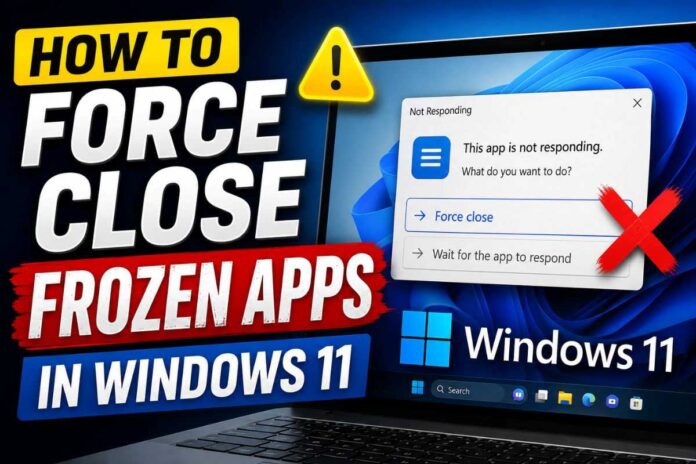


Few things disrupt your workflow faster than a frozen application. One moment you’re typing an email or editing a spreadsheet, and the next, your screen is stuck, the app stops responding, and no amount of clicking seems to help. If you’re using Windows 11 and have run into this frustrating issue, you’re not alone — and thankfully, there are several reliable ways to force close a frozen app without restarting your entire PC.
In this comprehensive guide, we’ll walk you through nine step-by-step methods to force close unresponsive applications in Windows 11, explain why apps freeze in the first place, and answer the most common questions users have about this issue. Whether you’re a casual user or an IT professional, this guide has something for everyone.
Why Do Apps Freeze in Windows 11?
Before diving into the fixes, it helps to understand why applications freeze in the first place. Common causes include:
- Insufficient system resources (RAM or CPU usage maxed out)
- Software bugs or corrupted files within the application
- Outdated drivers, especially graphics or chipset drivers
- Background processes conflicting with the app
- Malware or antivirus interference
- Incompatible updates or outdated Windows builds
- Hardware issues, such as a failing hard drive or overheating components
Understanding the root cause can help you prevent future freezes, but when you need an immediate fix, the methods below will get you back on track.
Method 1: Use Task Manager to Force Close an App
Task Manager is the most common and reliable way to shut down an unresponsive program in Windows 11.
Steps:
- Press Ctrl + Shift + Esc to open Task Manager directly.
- In the Processes tab, locate the frozen application. It’s often labeled “Not Responding.”
- Click on the app to select it.
- Click the End Task button in the top-right corner (or bottom-right, depending on your Task Manager view).
- Confirm if prompted, and the app should close within a few seconds.
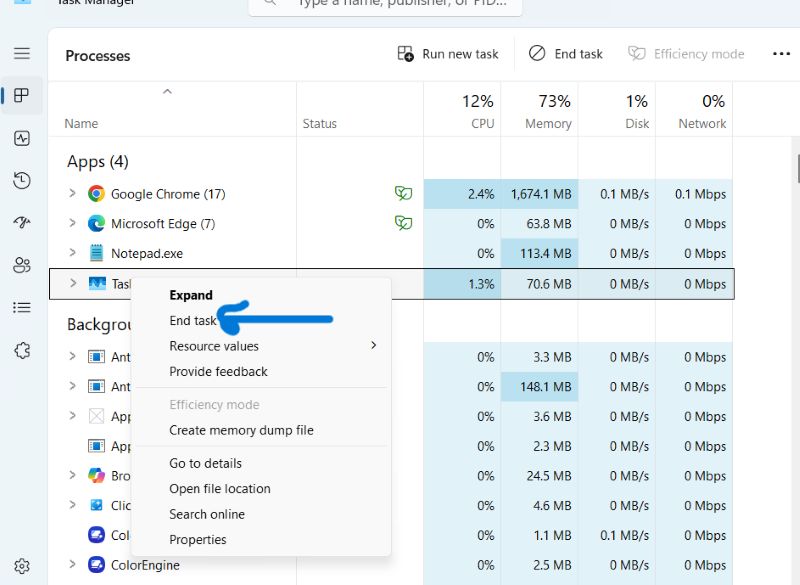
This method works for almost all standard desktop applications and is the go-to solution for most users.
Method 2: Use Ctrl + Alt + Delete Menu
If Task Manager doesn’t open immediately or you prefer a visual menu, this method works well.
Steps:
- Press Ctrl + Alt + Delete on your keyboard simultaneously.
- A blue screen will appear with several options, including “Task Manager,” “Sign out,” “Lock,” and more.
- Click Task Manager.
- Follow the same steps as Method 1 to end the frozen task.
This is particularly useful if your system feels sluggish and Task Manager takes a moment to load through the shortcut alone.
Method 3: Close the App via the Taskbar
Sometimes the simplest solution works best, especially for apps that are only slightly unresponsive.
Steps:
- Right-click on the frozen app’s icon in the taskbar at the bottom of your screen.
- Select Close window from the context menu.
- If the app doesn’t close immediately, wait 10-15 seconds, as Windows may attempt to close it gracefully first.
If this doesn’t work, move on to a more forceful method like Task Manager or Command Prompt.
Method 4: Use Alt + F4 to Close the Active Window
This classic keyboard shortcut has been part of Windows for decades and still works effectively in Windows 11.
Steps:
- Click on the frozen application to make sure it’s the active window.
- Press Alt + F4.
- Wait a few seconds. Windows may display a prompt asking if you want to force close the app.
- Confirm the action if prompted.
Note: This method works best when the app is only partially frozen and can still receive keyboard input.
Method 5: Force Close Using Command Prompt (Taskkill Command)
For users comfortable with a bit of command-line work, Command Prompt offers a fast and effective way to terminate stuck processes.
Steps:
- Press Windows key + S, type cmd, and open Command Prompt (Run as Administrator is recommended).
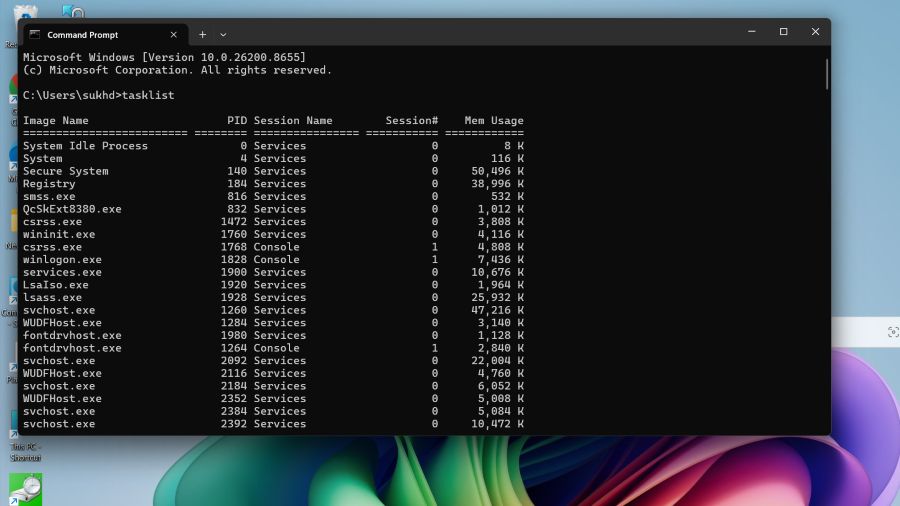
- Type the following command to view all running processes:
tasklist- Identify the exact name of the frozen application (e.g.,
notepad.exe,chrome.exe). - Type the following command, replacing
appname.exewith the actual process name:
taskkill /IM appname.exe /F- Press Enter. The
/Fflag forces termination, and the app should close immediately.
This method is especially useful when the graphical interface is completely unresponsive and Task Manager itself struggles to load.
Method 6: Force Close Using PowerShell
PowerShell offers a more modern and flexible alternative to Command Prompt, especially for advanced users.
Steps:
- Press Windows key + X and select Windows Terminal (Admin) or PowerShell (Admin).
- Type the following command to view running processes:
Get-Process- Identify the process name of the frozen app.
- Run the following command to stop it:
Stop-Process -Name "appname" -Force- Press Enter to execute the command.
PowerShell is particularly useful for scripting repeated fixes if a specific app freezes frequently.
Method 7: Restart Windows Explorer
Sometimes it’s not the app itself but the Windows shell (Explorer.exe) that becomes unresponsive, causing multiple apps or the taskbar to freeze.
Steps:
- Open Task Manager using Ctrl + Shift + Esc.
- Scroll down to find Windows Explorer in the Processes list.
- Right-click on it and select Restart.
- Your taskbar and desktop icons may briefly disappear before reloading.
This method often resolves issues where the entire desktop feels unresponsive, not just a single application.
Method 8: Use the Resource Monitor for Deeper Diagnostics
If an app keeps freezing repeatedly, Resource Monitor can help you identify the underlying cause before force closing it.
Steps:
- Open Task Manager and click on Performance tab.
- Click Open Resource Monitor at the bottom.
- Navigate to the CPU tab to see which processes are consuming excessive resources.
- Right-click the problematic process and select End Process.
This method is ideal for diagnosing whether high CPU, disk, or memory usage is the root cause of frequent freezing.
Method 9: Use Third-Party Task Managers
If built-in Windows tools aren’t cutting it, several trusted third-party utilities offer more granular control over process management, including the ability to force-close deeply frozen or hidden background processes.
Popular options include:
- Process Explorer (by Microsoft Sysinternals)
- System Explorer
- CurrProcess
These tools often provide more detailed information about system resource usage, parent-child process relationships, and hidden processes that Task Manager might not display clearly.
How to Prevent Apps From Freezing in the Future
While knowing how to force close a frozen app is essential, preventing freezes altogether saves time and reduces frustration. Here are some proactive tips:
- Keep Windows and drivers updated — Outdated drivers, especially GPU drivers, are a common cause of freezing.
- Increase virtual memory (paging file) if you frequently run memory-intensive applications.
- Run a malware scan regularly using Windows Security or a trusted antivirus tool.
- Close unnecessary background apps to free up system resources.
- Check for app-specific updates, as outdated software versions often contain bugs that cause freezing.
- Monitor your hardware temperature, especially if you’re using a laptop or a system without adequate cooling, since overheating can cause system-wide slowdowns and freezes.
- Reinstall problematic applications if a specific app freezes repeatedly despite updates.
Frequently Asked Questions (FAQs)
1. Why does Task Manager itself freeze sometimes?
Task Manager can become unresponsive if your system is under extreme resource strain. In such cases, try using Command Prompt or PowerShell instead, as they consume fewer resources and can often terminate processes even when the graphical interface struggles.
2. Will force closing an app cause data loss?
Yes, force closing an application typically closes it without saving unsaved changes. If possible, wait a few extra seconds before force closing, as some apps recover on their own, especially after temporary lag spikes.
3. What’s the difference between “End Task” and “Close Window”?
“Close Window” sends a normal close signal, giving the app time to save data and shut down gracefully. “End Task” (or taskkill /F) forcefully terminates the process immediately, which can be necessary for truly frozen apps but increases the risk of losing unsaved work.
4. My app keeps freezing every time I open it. What should I do?
Try updating the app, reinstalling it, checking for Windows updates, and reviewing Resource Monitor to see if it’s consuming excessive resources. If the issue persists, check the developer’s support page for known bugs.
5. Can a frozen app affect my entire computer?
Yes, in some cases a severely frozen application can consume enough CPU or memory to slow down your entire system, making other apps sluggish or unresponsive as well. Restarting Windows Explorer or using Resource Monitor to diagnose the issue can help isolate the problem.
6. Is it safe to use Command Prompt or PowerShell to force close apps?
Yes, as long as you’re using the correct process name and running the commands with appropriate permissions. These built-in tools are safe, native to Windows, and don’t require third-party downloads.
7. What should I do if force closing doesn’t work at all?
If none of the above methods work, restart your computer. If the app freezes immediately after restart, consider checking for corrupted system files using the sfc /scannow command in Command Prompt, or performing a clean boot to identify conflicting background programs.
Conclusion
Dealing with a frozen application in Windows 11 doesn’t have to derail your entire day. With methods ranging from the simple Task Manager and Alt + F4 shortcuts to more advanced solutions like Command Prompt, PowerShell, and Resource Monitor, you have multiple ways to regain control of your system quickly and efficiently.
For occasional freezes, built-in tools like Task Manager and taskbar options are usually enough. However, if you experience frequent freezing, it’s worth digging deeper using Resource Monitor or third-party tools to identify recurring patterns — whether it’s a resource-hungry background process, outdated drivers, or a buggy application in need of an update.
By combining these force-close techniques with proactive maintenance tips like keeping your system updated and monitoring resource usage, you can minimize disruptions and keep your Windows 11 experience running smoothly.