








Restarting your computer regularly is one of the simplest ways to keep it running smoothly. A restart clears out temporary files, closes memory leaks caused by long-running applications, applies pending updates, and gives your system a clean slate to work from. But manually restarting your PC every day or every few days is easy to forget, especially if you’re busy or your computer is left running for long stretches at a time.
The good news is that Windows 11 gives you several built-in ways to schedule a restart automatically, so you never have to think about it again. Whether you want your PC to restart every night at 2 AM, once a week on Sunday morning, or after a specific number of hours, Windows 11 has a method that fits your needs. You don’t need any third-party software to do this — everything can be accomplished using tools that are already built into the operating system, such as Task Scheduler, Command Prompt, PowerShell, and Windows Update settings.
In this guide, we’ll walk through every practical method for scheduling a restart in Windows 11. We’ll cover the graphical Task Scheduler approach for those who prefer a visual interface, command-line methods for quick one-off scheduling, PowerShell scripting for more advanced automation, and how to configure automatic restarts tied to Windows Update. By the end, you’ll be able to choose the method that best matches your comfort level and your specific use case, whether that’s a home PC, a work laptop, or a server-like machine that needs consistent maintenance.
Methods to Schedule a Restart in Windows 11
Method 1: Using Task Scheduler (Recommended for Most Users)
Task Scheduler is the most flexible and user-friendly way to automate a restart in Windows 11. It lets you set a recurring schedule, choose exact times, and even add conditions like “only run if the computer is idle” or “only run if plugged into AC power.”
Step-by-step instructions:
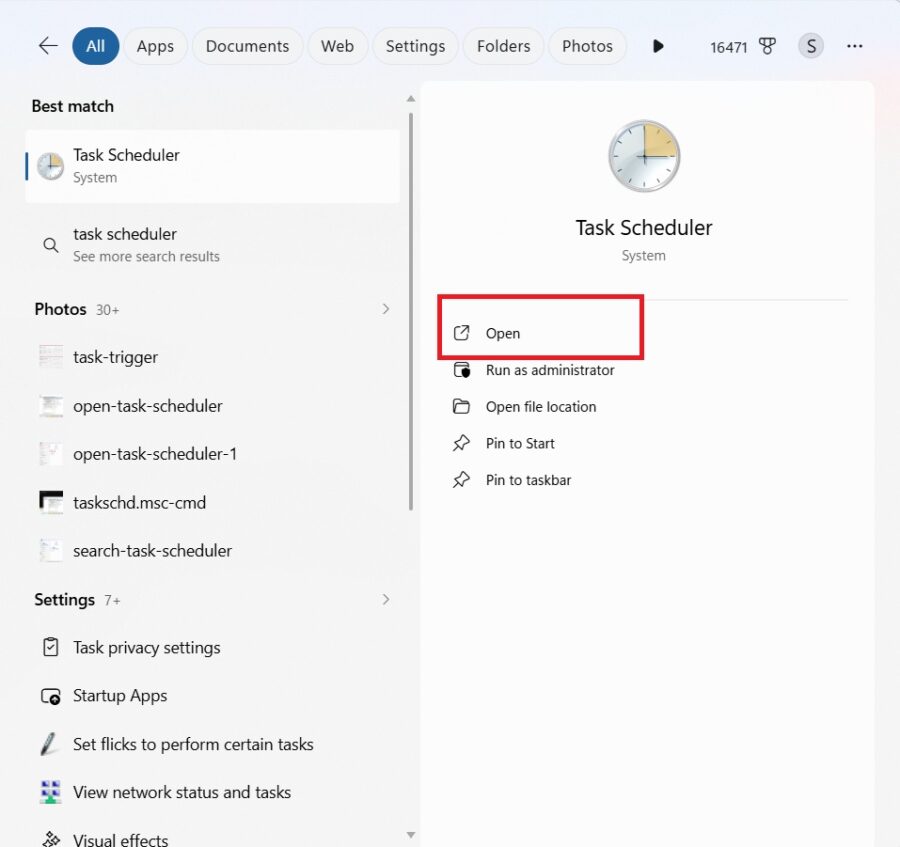
Press Windows key + S to open search, type Task Scheduler, and open it.
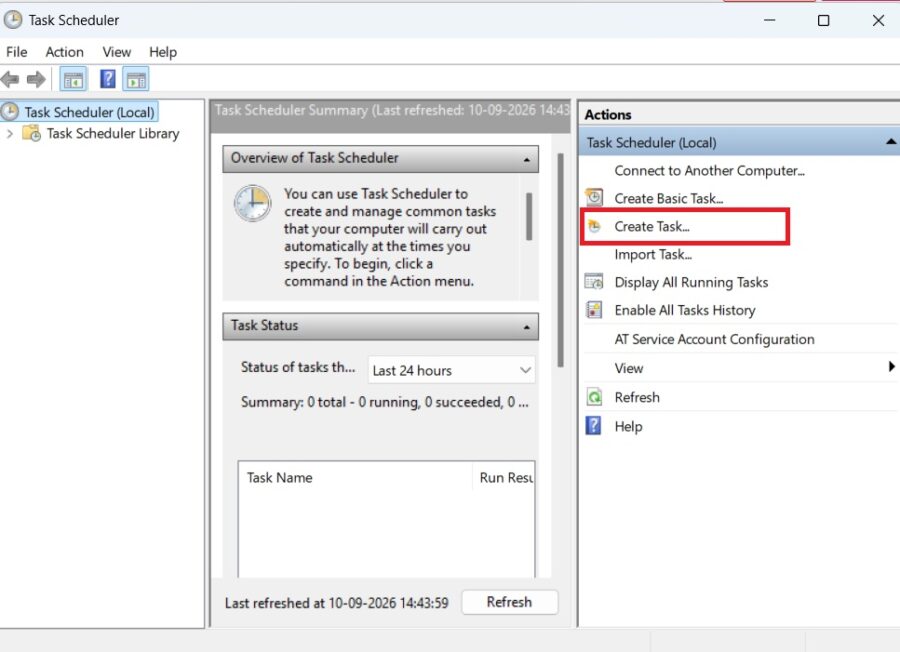
In the right-hand Actions panel, click Create Task.
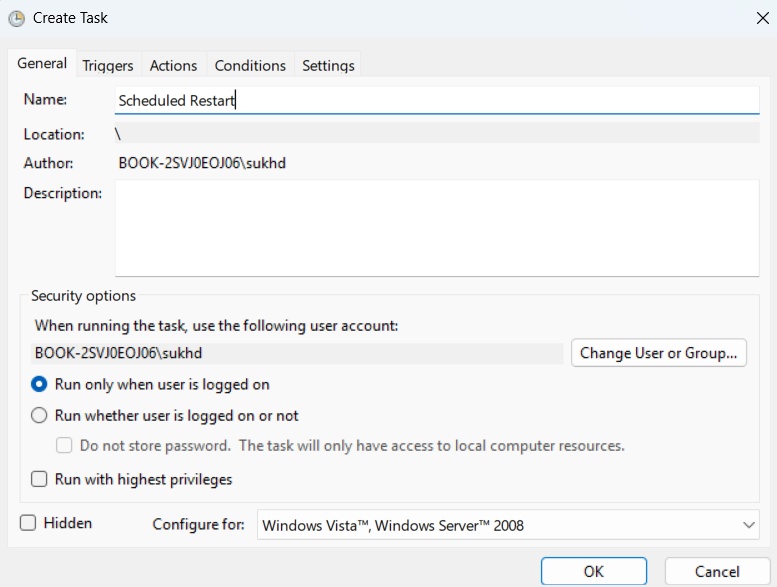
Give your task a name, such as “Scheduled Restart,” and an optional description. Click Next.
Choose how often you want the restart to happen — Daily, Weekly, Monthly, or One time. Click Next.
Set the specific start date and time for the restart, then click Next.
Under Action, select Start a program, then click Next.
In the “Program/script” field, type: shutdown
In the “Add arguments” field, type: /r /f /t 0
/rtells Windows to restart instead of shutting down./fforces running applications to close without warning./t 0sets the delay to zero seconds, so the restart happens immediately at the scheduled time.
Click Next, review the summary, and click Finish.
Once created, you can find your task in the Task Scheduler Library. Right-click it any time to modify the schedule, disable it temporarily, or delete it. You can also add extra conditions under the task’s Conditions and Settings tabs, such as waking the computer from sleep to run the task, or only running it if a specific user is logged on.
Method 2: Using Command Prompt
If you just need a one-time scheduled restart rather than a recurring one, Command Prompt offers a fast solution using the built-in shutdown command.
- Open Command Prompt (search for “cmd” in the Start menu).
- Type the following command and press Enter:
shutdown /r /t 3600This schedules a restart in 3600 seconds (one hour). Adjust the number after /t to set the delay in seconds — for example, /t 1800 for 30 minutes, or /t 7200 for two hours. 3. To cancel a scheduled restart before it happens, open Command Prompt again and type:
shutdown /aThis method is quick and doesn’t require navigating any menus, but it only works for a single scheduled restart. It won’t persist as a recurring event, and it will be cancelled if you shut down or restart the PC manually before the timer runs out.
Method 3: Using PowerShell
PowerShell offers the same core functionality as Command Prompt but with more flexibility for scripting, combining commands, and integrating scheduled restarts into larger automation workflows.
Simple delayed restart:
- Open PowerShell (search for it in the Start menu, or right-click the Start button and select “Windows Terminal”).
- Run the following command to restart after a delay (in seconds):
powershell
shutdown /r /t 3600Creating a recurring scheduled task via PowerShell:
For a more robust recurring schedule, you can use PowerShell’s Register-ScheduledTask cmdlet:
powershell
$action = New-ScheduledTaskAction -Execute "shutdown.exe" -Argument "/r /f /t 0"
$trigger = New-ScheduledTaskTrigger -Daily -At 2:00AM
Register-ScheduledTask -Action $action -Trigger $trigger -TaskName "DailyRestart" -Description "Restarts the PC daily at 2 AM" -RunLevel Highest
This creates the same kind of task you’d get through the Task Scheduler GUI, but it’s scriptable, which makes it ideal for IT administrators managing multiple machines or for anyone who wants to back up and reuse their automation settings.
To remove this task later, run:
powershell
Unregister-ScheduledTask -TaskName "DailyRestart" -Confirm:$falseMethod 4: Scheduling Restarts Through Windows Update Settings
If your main goal is to make sure Windows updates are installed promptly, rather than restarting on a fixed schedule unrelated to updates, Windows 11’s built-in Windows Update settings can handle this automatically.
- Open Settings by pressing Windows key + I.
- Go to Windows Update.
- Click Advanced options.
- Under Active hours, set the hours during which you’re typically using your PC. Windows will avoid restarting during this window and will instead restart outside of it, once updates are ready.
- Alternatively, click Restart options (if available) to manually set a specific time for a pending update-related restart.
This method doesn’t give you full control over arbitrary restart schedules unrelated to updates, but it’s the most “hands-off” option if your primary concern is that update-related restarts happen at convenient times rather than interrupting your work.
Method 5: Using Group Policy Editor (Windows 11 Pro and Enterprise)
For users on Windows 11 Pro, Enterprise, or Education editions, Group Policy Editor provides administrative control over restart-related behavior, particularly around update scheduling.
- Press Windows key + R, type
gpedit.msc, and press Enter. - Navigate to Computer Configuration > Administrative Templates > Windows Components > Windows Update.
- Look for policies such as “Specify deadlines for automatic updates and restarts” or “Always automatically restart at the scheduled time.”
- Enable the relevant policy and configure the specific time and conditions you want.
This method is generally used in managed or business environments rather than for personal restart scheduling, but it’s worth knowing about if you’re configuring multiple machines or need restarts to comply with organizational update policies.
Conclusion
Windows 11 provides multiple reliable ways to schedule a restart, and the right method depends on what you’re trying to accomplish. If you want a recurring restart on a set schedule — say, every night or every week — Task Scheduler is the most complete and flexible option, offering a graphical interface along with conditions and triggers you can fine-tune. If you just need a quick, one-time delayed restart, the Command Prompt shutdown command gets the job done in seconds. For those comfortable with scripting or managing several machines, PowerShell offers the same power as Task Scheduler but in a form that can be automated, version-controlled, and reused. And if your main concern is simply making sure update-related restarts happen at a convenient time, adjusting your active hours in Windows Update settings is the simplest hands-off approach.
Whichever method you choose, scheduling restarts is a small habit that pays off with a noticeably more stable and responsive system. It’s a “set it and forget it” fix that prevents the kind of slowdown, memory bloat, and update backlog that builds up when a PC runs for weeks without a fresh start.
Frequently Asked Questions
1. Will a scheduled restart close my open programs and cause me to lose unsaved work?
Yes, by default a scheduled restart using the shutdown /r command will force-close open applications, which can result in lost unsaved work if you use the /f flag or if the timer runs out before you save. To avoid this, either make sure applications are set to auto-save, close your work before the scheduled time, or use Task Scheduler’s conditions to only trigger the restart when the machine is idle and no user is actively working.
2. How do I cancel or stop a scheduled restart in Windows 11?
If you scheduled the restart using Command Prompt or PowerShell with the shutdown /r /t command, you can cancel it at any time before the timer runs out by opening Command Prompt or PowerShell and typing shutdown /a, then pressing Enter. If you created a recurring task through Task Scheduler, open Task Scheduler, find your task in the Task Scheduler Library, right-click it, and choose Disable or Delete to stop future occurrences.
3. Can I schedule a restart for a specific day of the week instead of every day?
Yes. When creating a task in Task Scheduler, choose Weekly as the recurrence option during the Create Basic Task wizard, then select the specific day or days of the week you want the restart to occur. This is useful if you only want a restart on, for example, Sunday nights before the start of a new work week, rather than every single day.
4. Does scheduling a restart require administrator privileges?
Yes, restarting a computer through Task Scheduler, Command Prompt, or PowerShell generally requires administrator privileges, since it affects the entire system rather than just your user account. When creating a task in Task Scheduler, make sure to check the box for running with highest privileges if prompted, and when using Command Prompt or PowerShell, run the application as an administrator to avoid permission errors.